
Jobs
Create image
Ben, the design agent, makes pictures for your posts. You describe what you need, pick one of his directions, adjust the text and layout, and get every size you need.
1Describe the picture
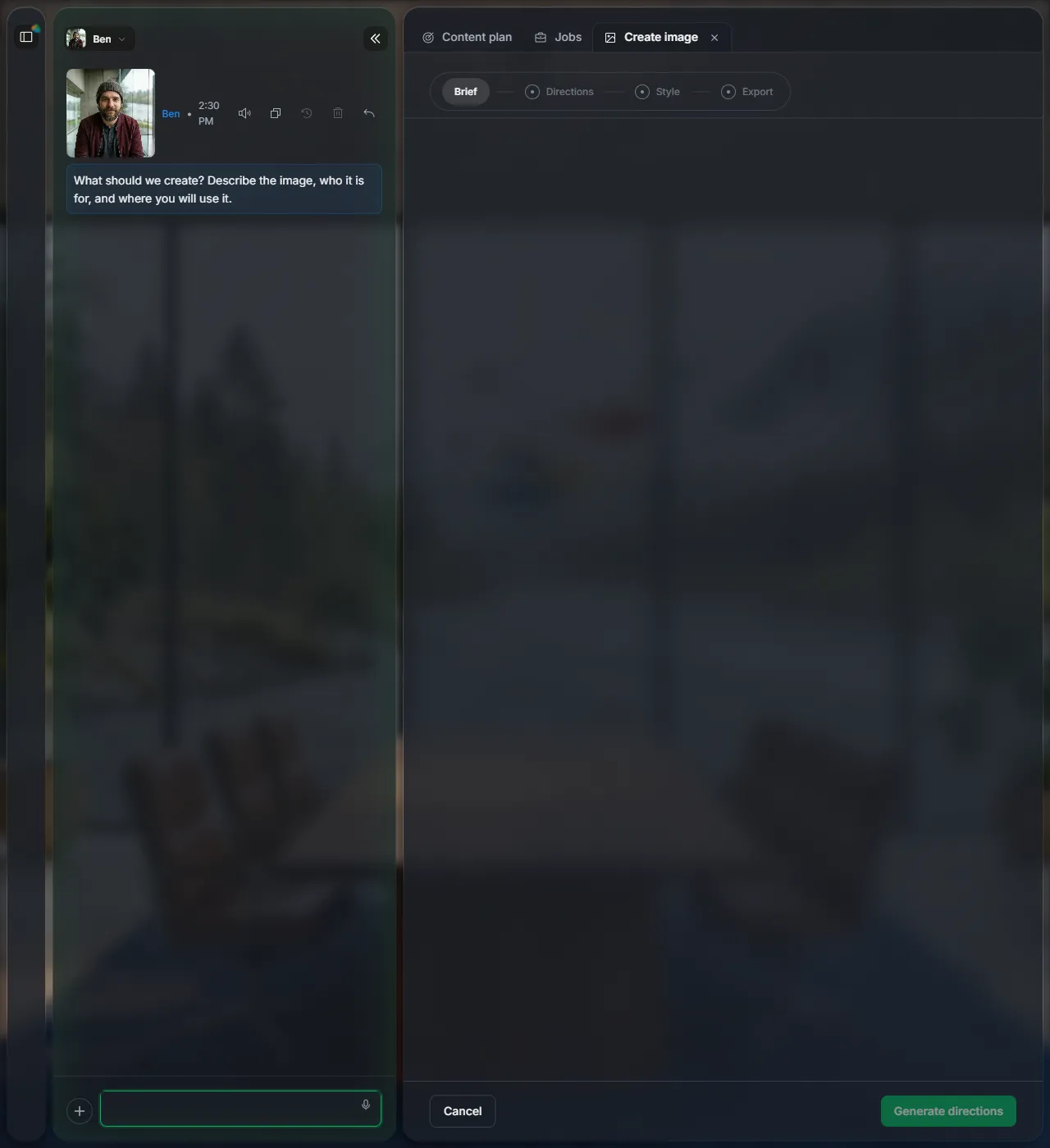
Open Jobs and click Create image. Ben asks what to create. Say what it shows, who it is for and where you will use it:
An image for our AIBC Rome post: calm glass pavilion by a misty river, Haba green accent
2Pick a direction
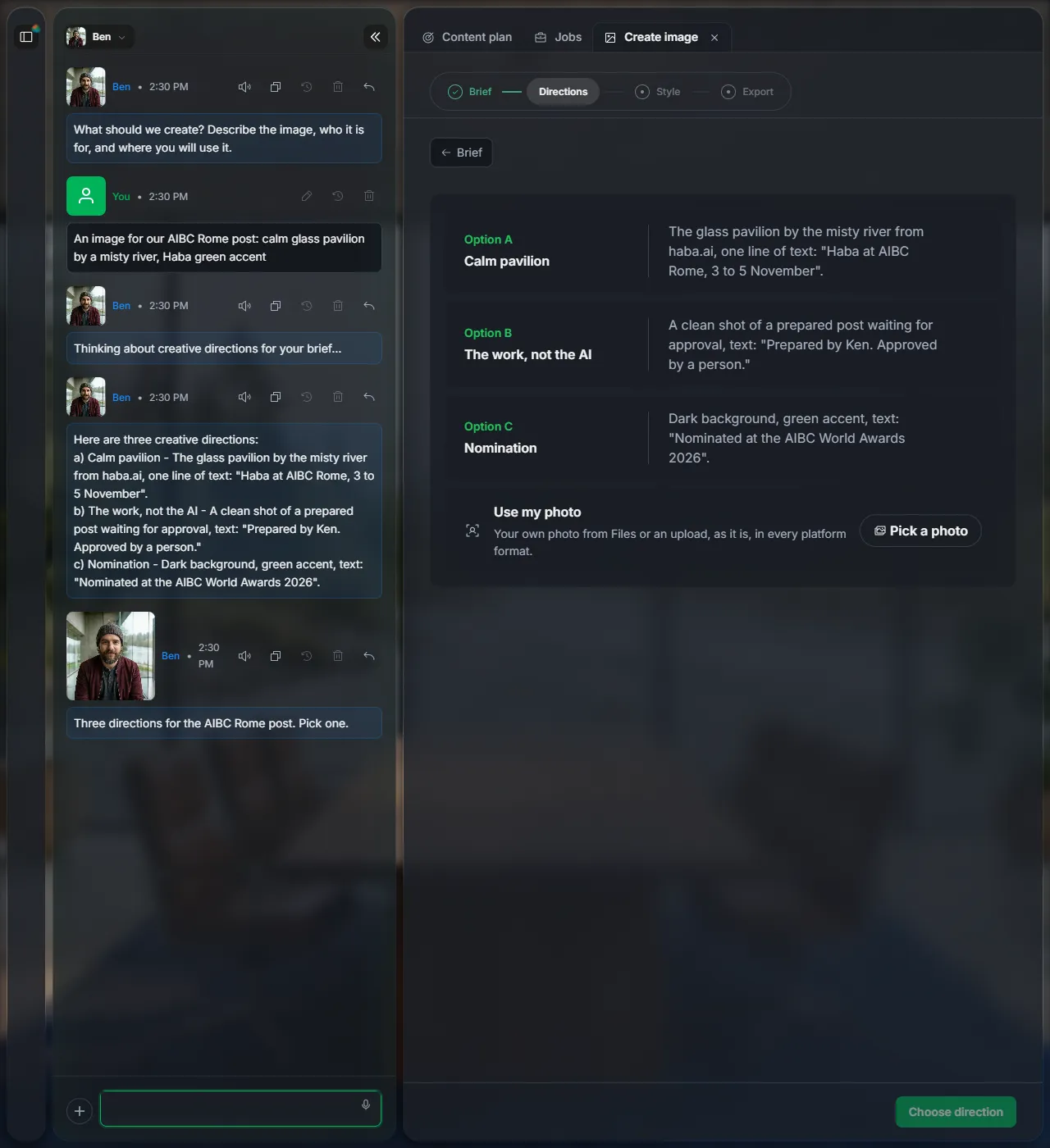
Ben suggests three directions, each with its idea and its line of text. Click the one you like, then Choose direction.
3Set text and layout
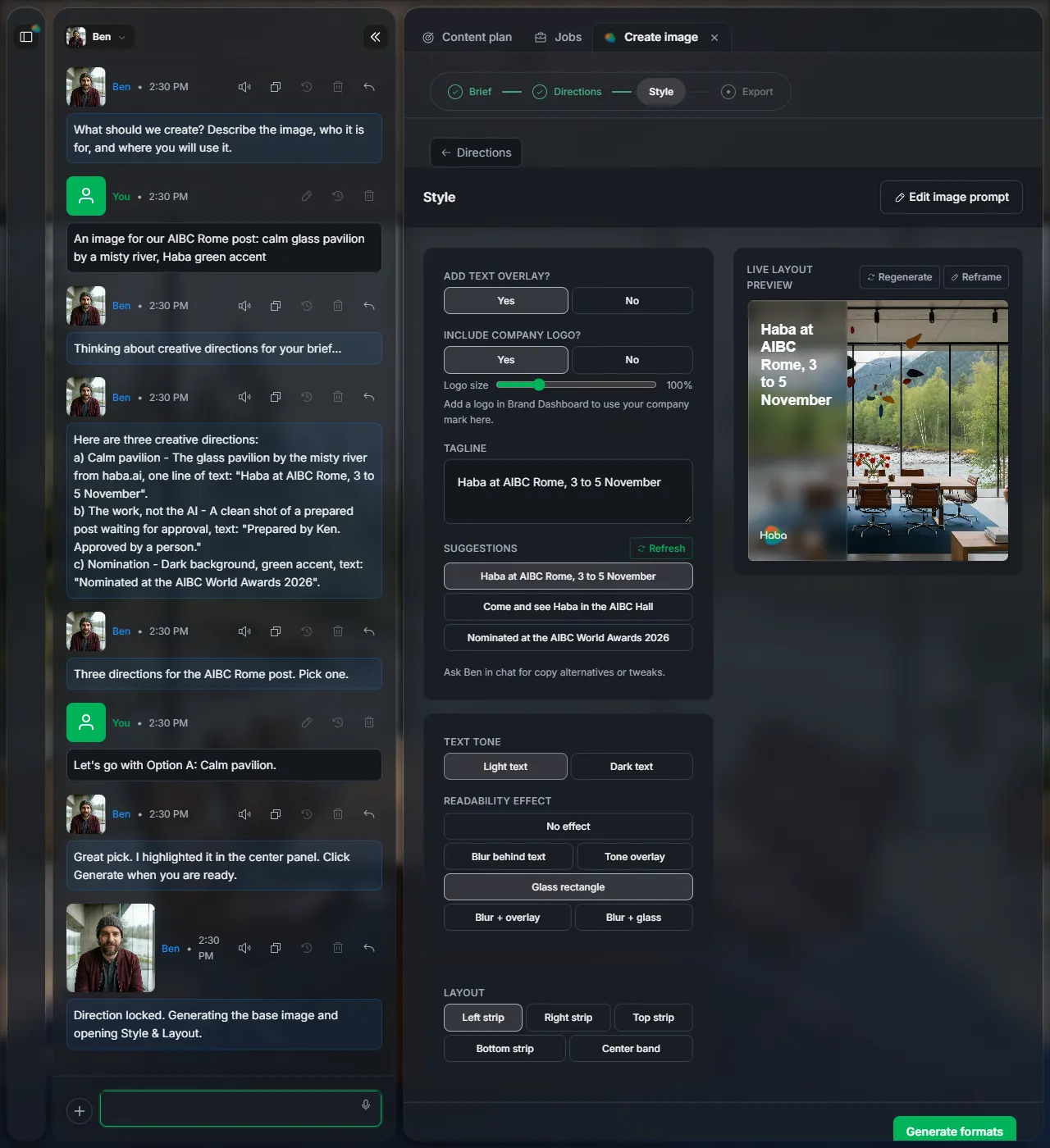
Ben makes the picture and opens the style settings. The preview on the right changes as you click.
| Text overlay and logo | Show a line of text and your logo, or not. |
| Tagline | Type your own, or pick one of the suggestions. |
| Text tone and readability effect | Light or dark text, and how it stands out from the picture. |
| Layout | Where the text sits: a strip on one side, or a band in the middle. |
| Edit image prompt | Change what the picture shows and make it again. |
Click Generate formats.
4Download the formats
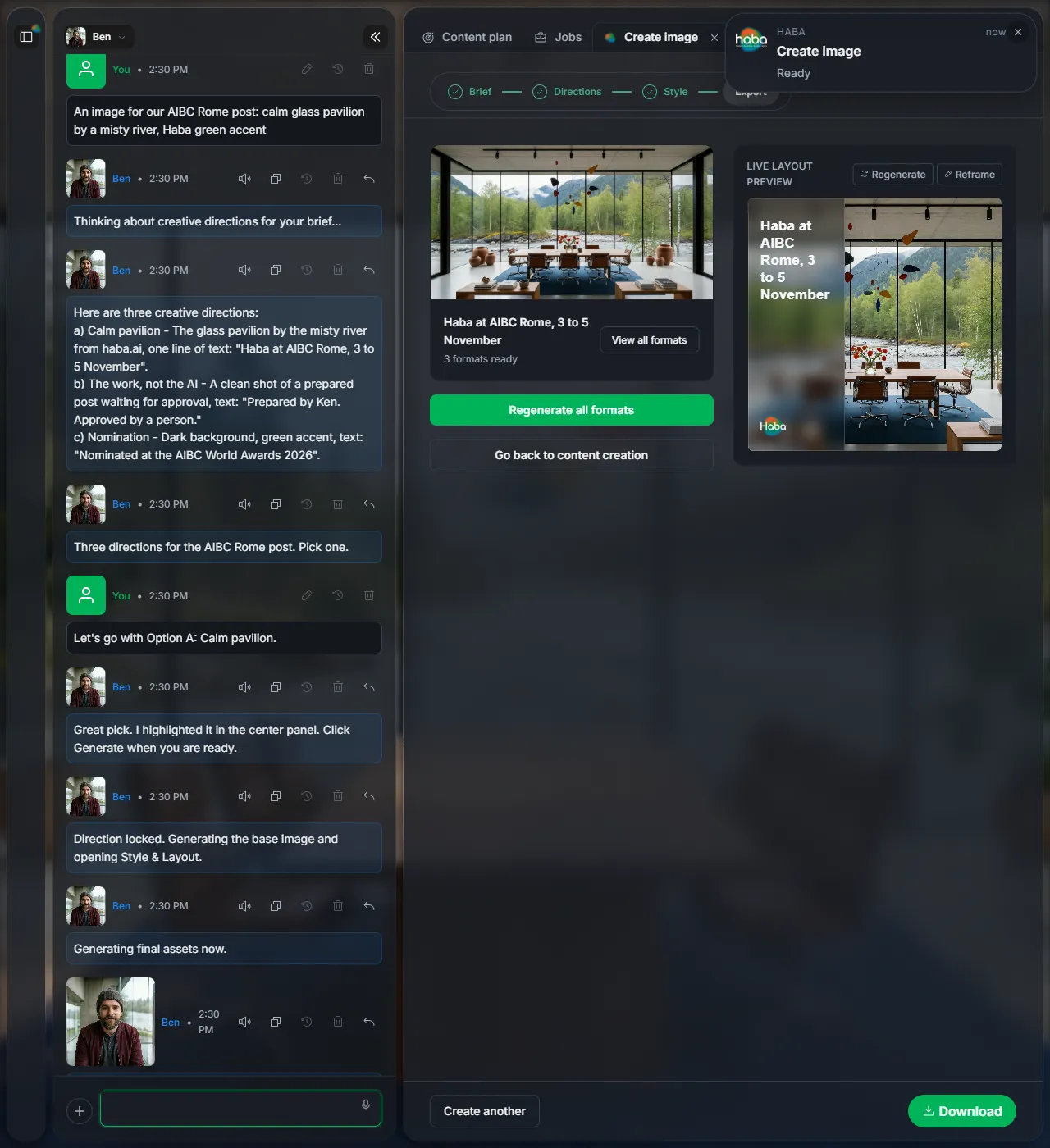
Ben makes the picture in every size you need. View all formats shows them all. Click Download to save them, or Create another to start a new picture.
Next
Did this page help?
Screens from 16 November 2026