
Review and approve a post
Haba prepares the posts for your week. You look at each one, change what you want, and approve it. Nothing is posted until you approve it.
1Open the next post
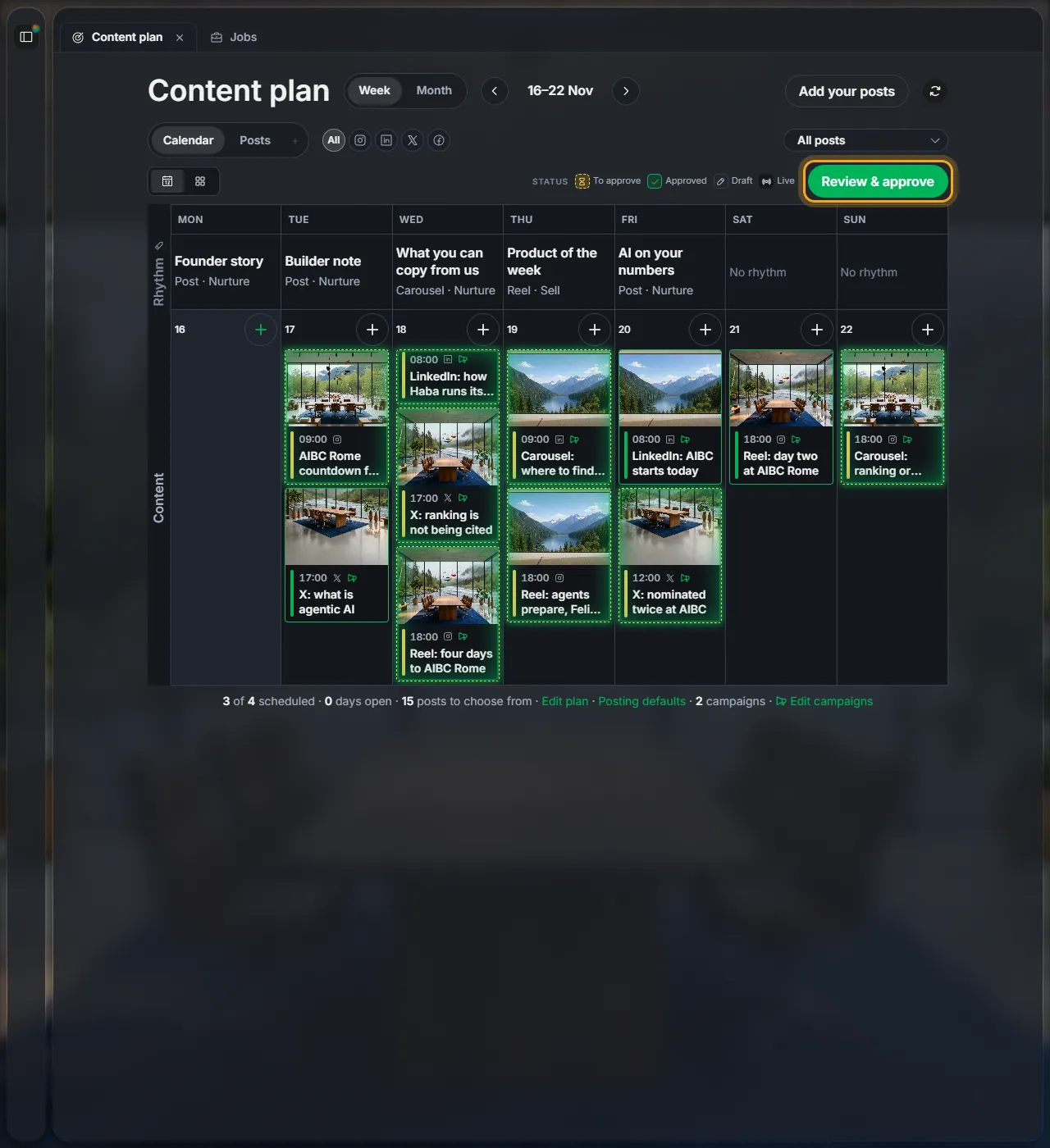
Open Content plan from the menu. The next prepared post is in the middle, with its day and time on the left. Use the arrows next to 1 of 2 to move between posts.
Click Review & approve.
2Read the post as your followers will see it
The post opens inside a phone, the way it will look on the platform. A carousel shows "1/3": use the arrows on the picture to see each slide. Click the caption to change the text, or the pencil on the picture to change the picture. More in Edit a post.

3See why Haba suggests it
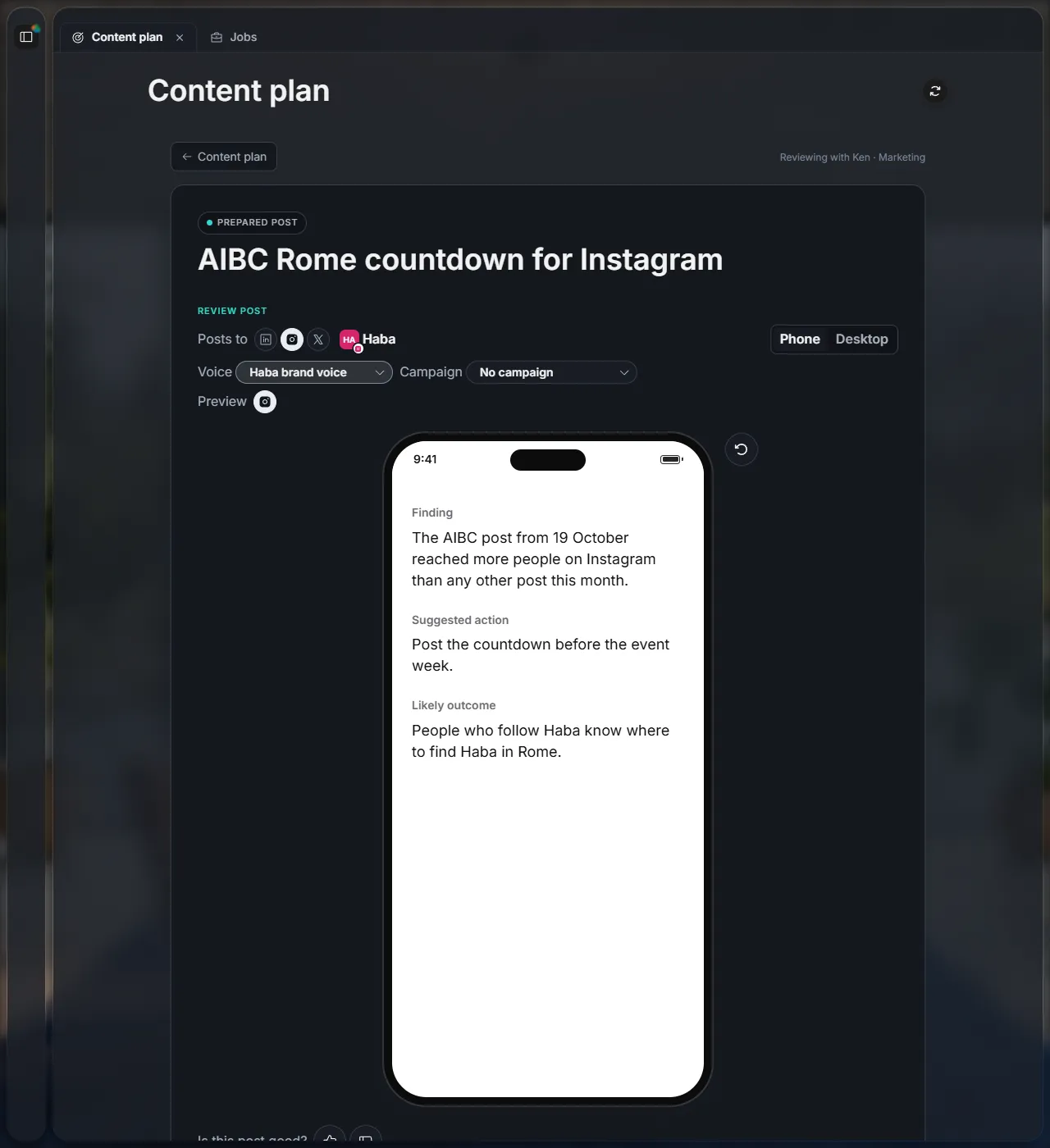
Click the i button next to the phone. You see what Haba noticed, what it suggests, and what it expects to happen. Click the same button again to go back to the post.
4Ask the agent to change it
Click Ask Agent. The chat opens on the left with this post already attached, so you can just say what you want:

5Approve it
Click the green button with the post's day and time, for example Approve for Fri 09:00. One click approves the post and schedules it. Then the next post opens.
Skip moves the post to Content › Trash. Click Undo in the notice to bring it back.
The ··· button has the other choices:
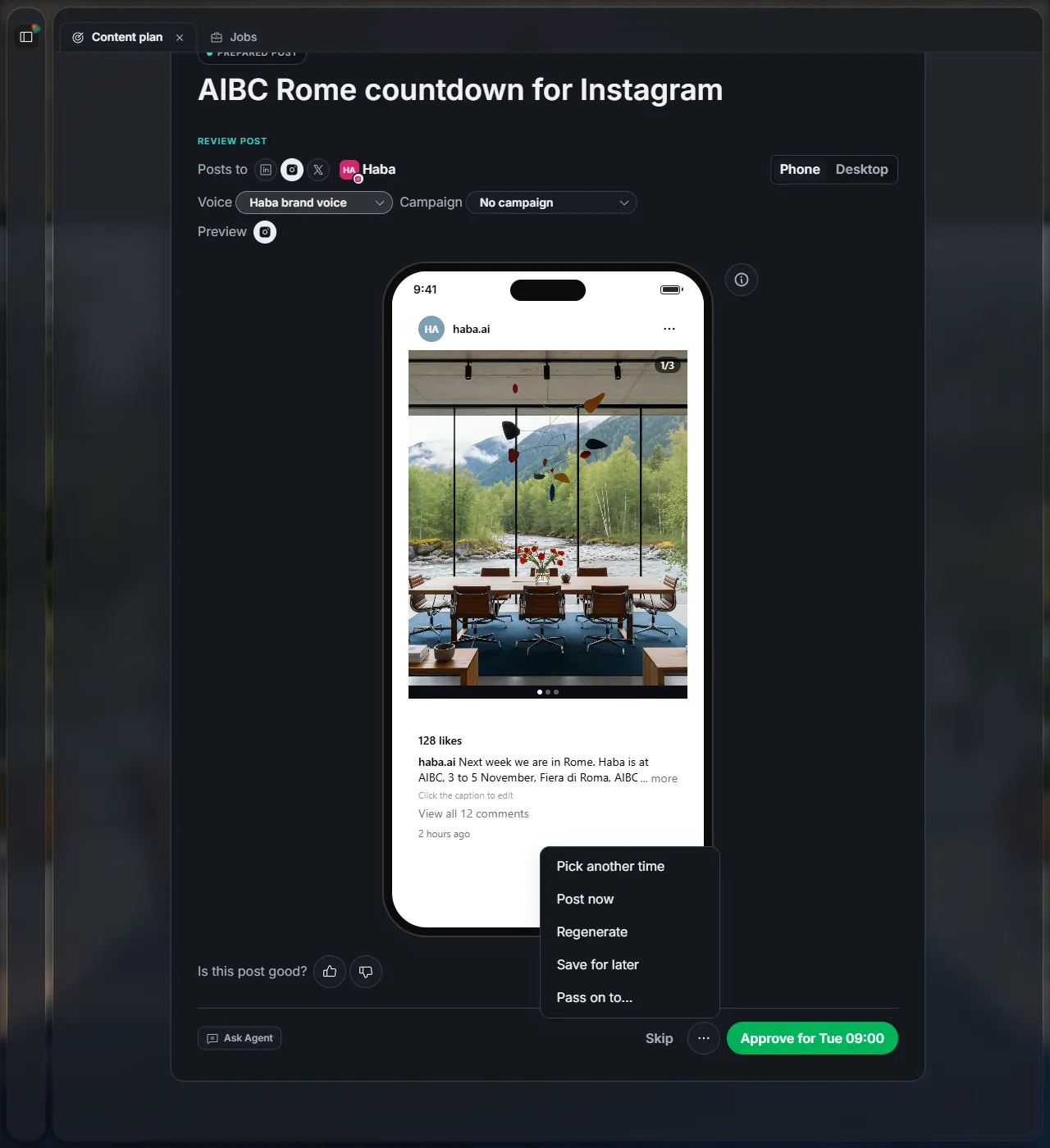
| Pick another time | Approve it for a different day or time. |
| Post now | Approve it and post it right away. |
| Regenerate | Haba writes a new version of the post. Undo brings the old one back. |
| Save for later | Keep the post in Content › Drafts without approving it. |
| Pass on to… | Send the post to a teammate to approve. |
Next
Did this page help?
Screens from 16 November 2026