
Create post
Need a post that is not in your plan? Tell Ken what it is about. He writes the draft, you change what you want, and add it to your plan.
1Start the job
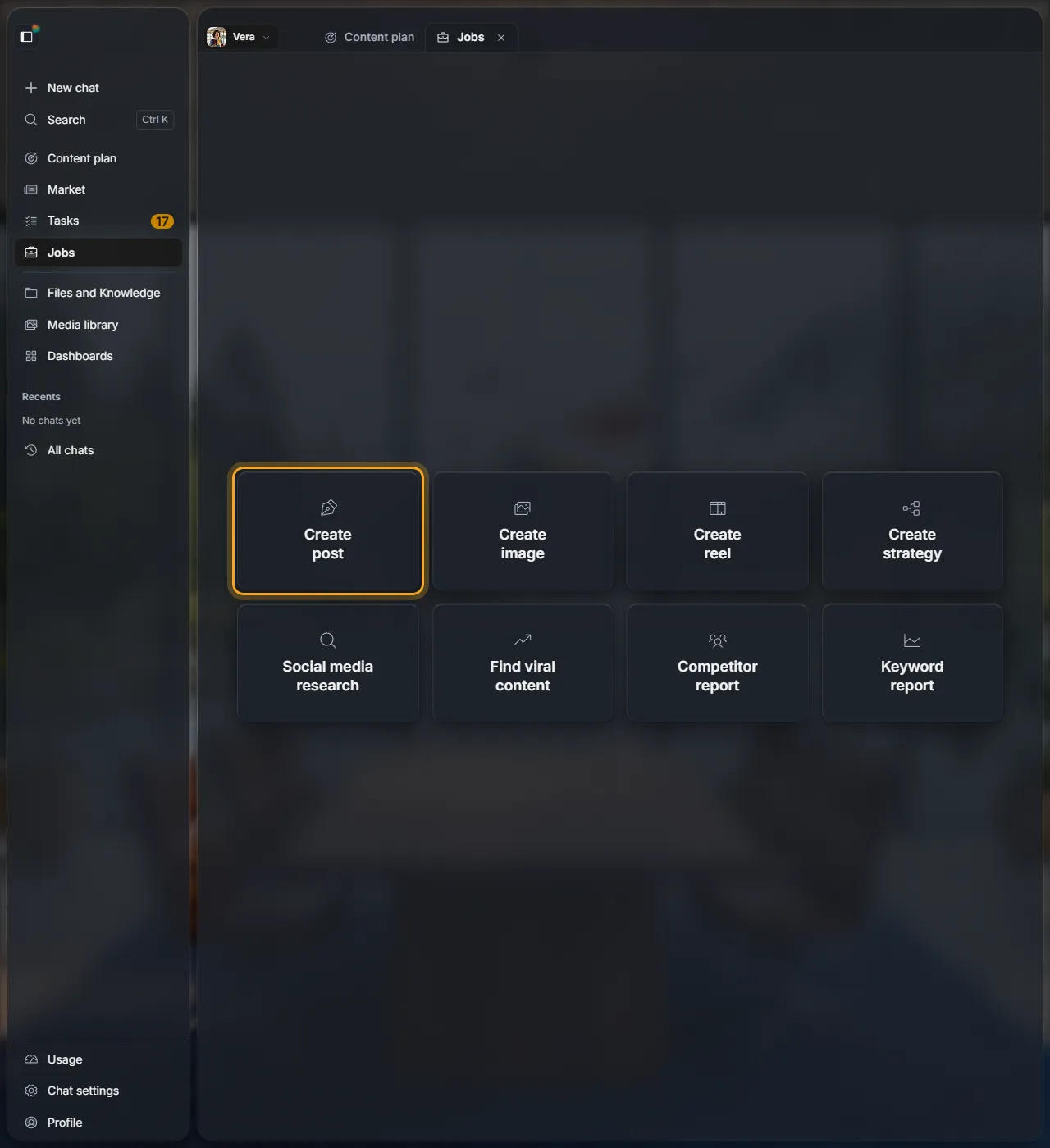
Open Jobs from the menu and click Create post.
2Say what the post is about
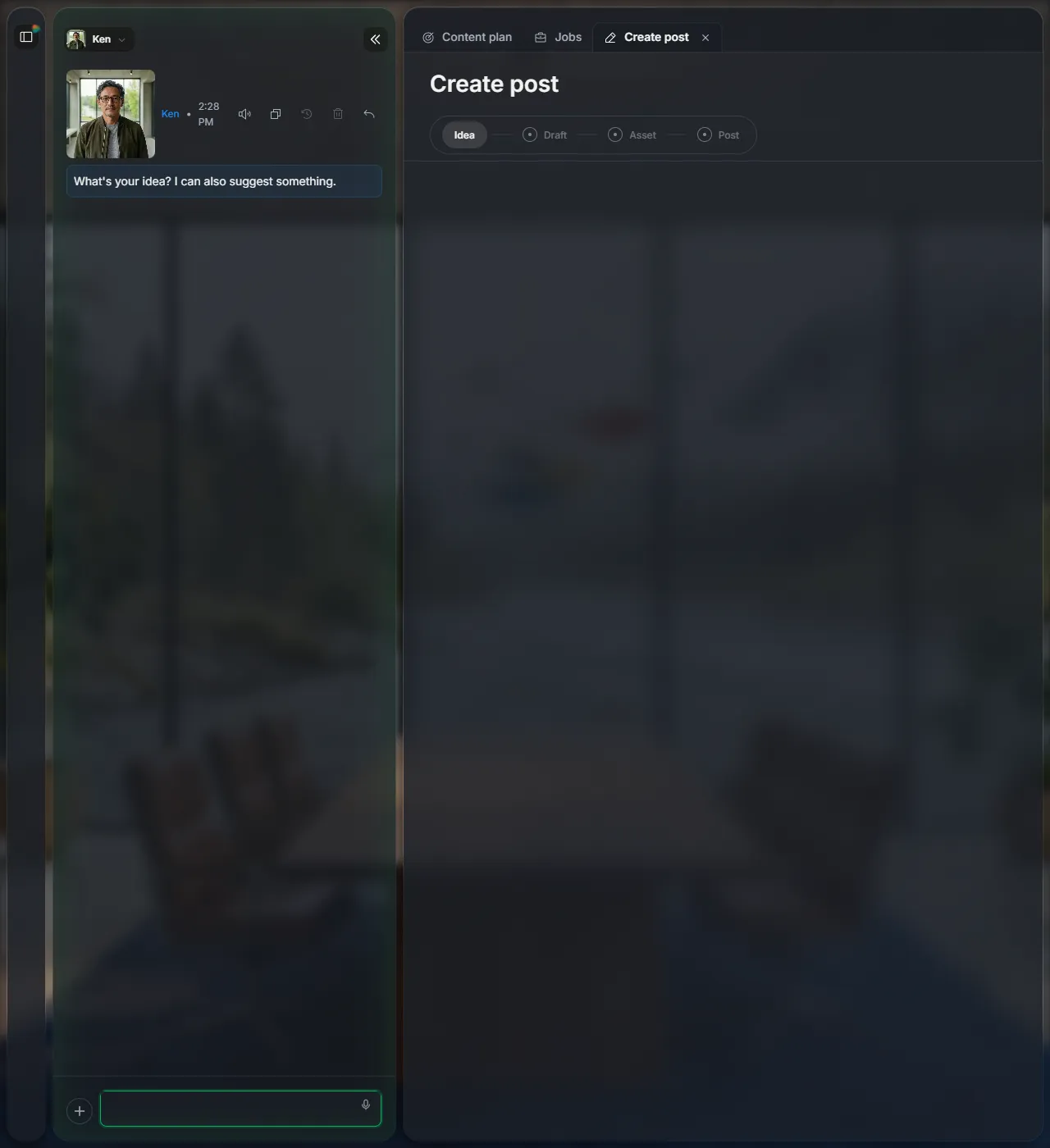
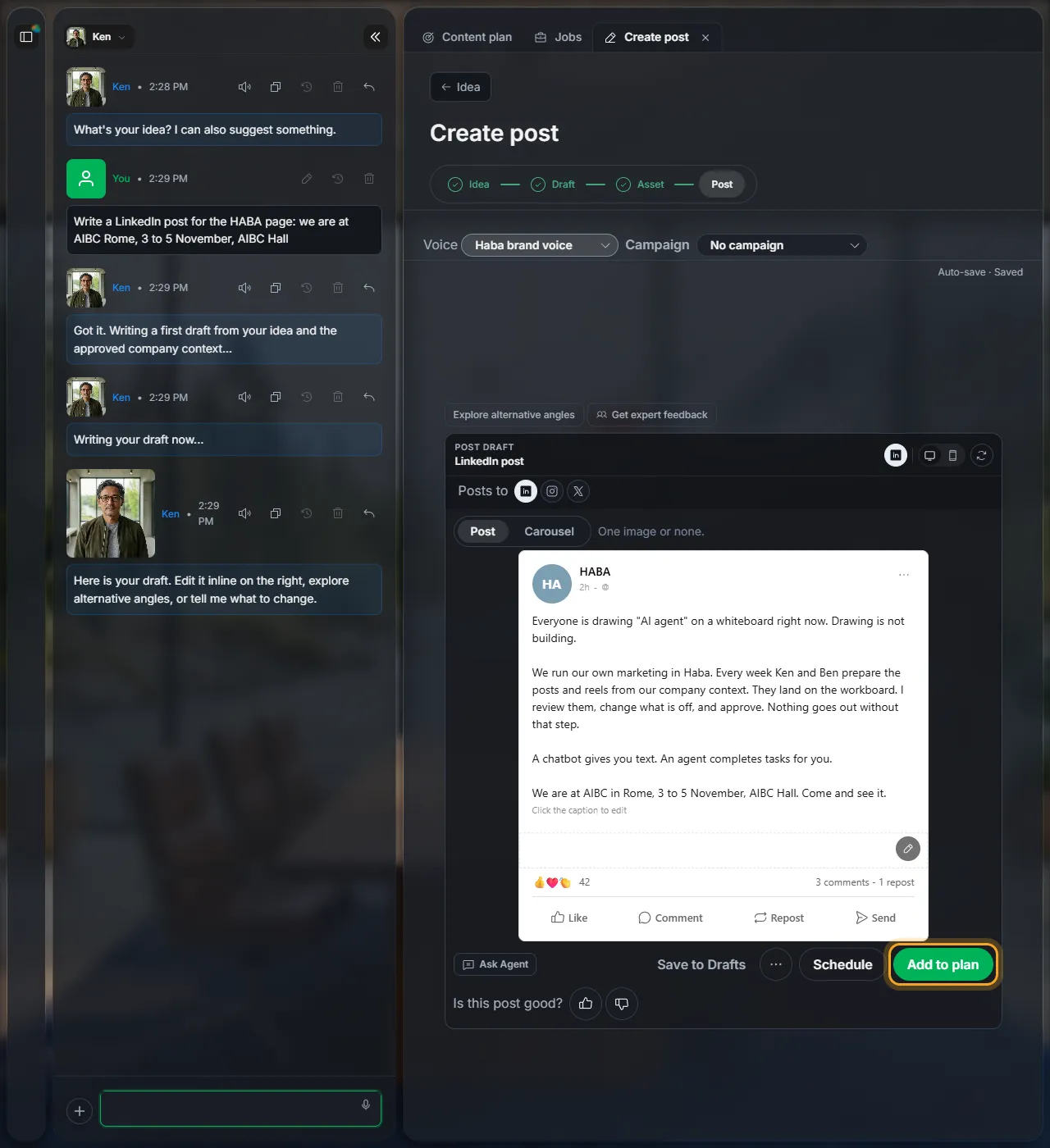
Ken, the marketing agent, asks for your idea. Type it, or click the microphone and say it. One sentence is enough:
No idea yet? Ask Ken to suggest something.
3Check the draft
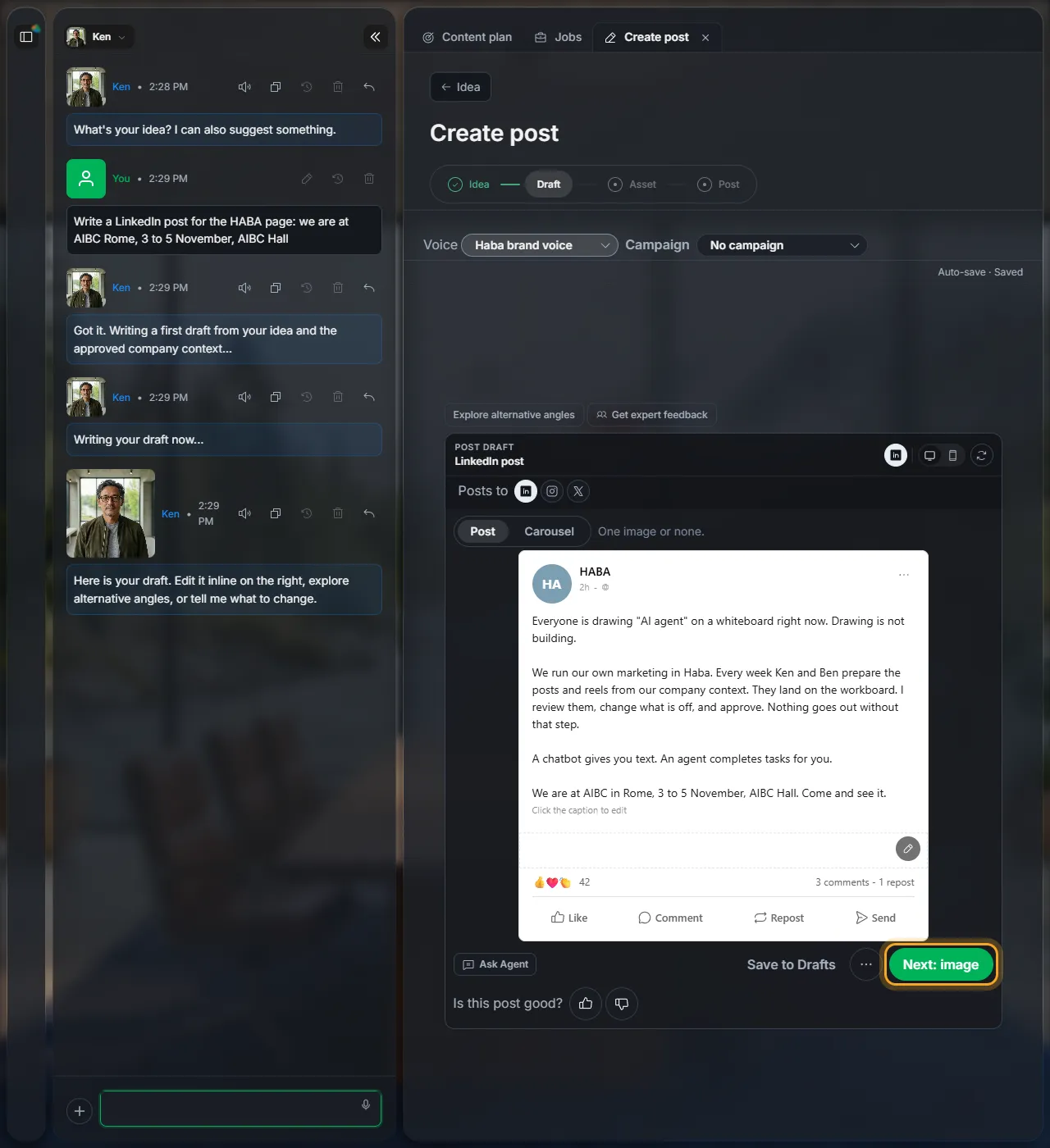
The draft appears on the right, the way it will look on the platform. Click the text to change it, or tell Ken in the chat what to change.
| Post, Carousel, Reel, Story | The format: one picture, several slides, a short video or a story. |
| Platform icons | Turn platforms on or off for this post. |
| Explore alternative angles | Ken suggests other angles as cards. Click Use this angle to rewrite the draft from one; you can undo it. |
| Get expert feedback | Pick agents to review the draft, then accept or dismiss each change they suggest. |
4Add the picture
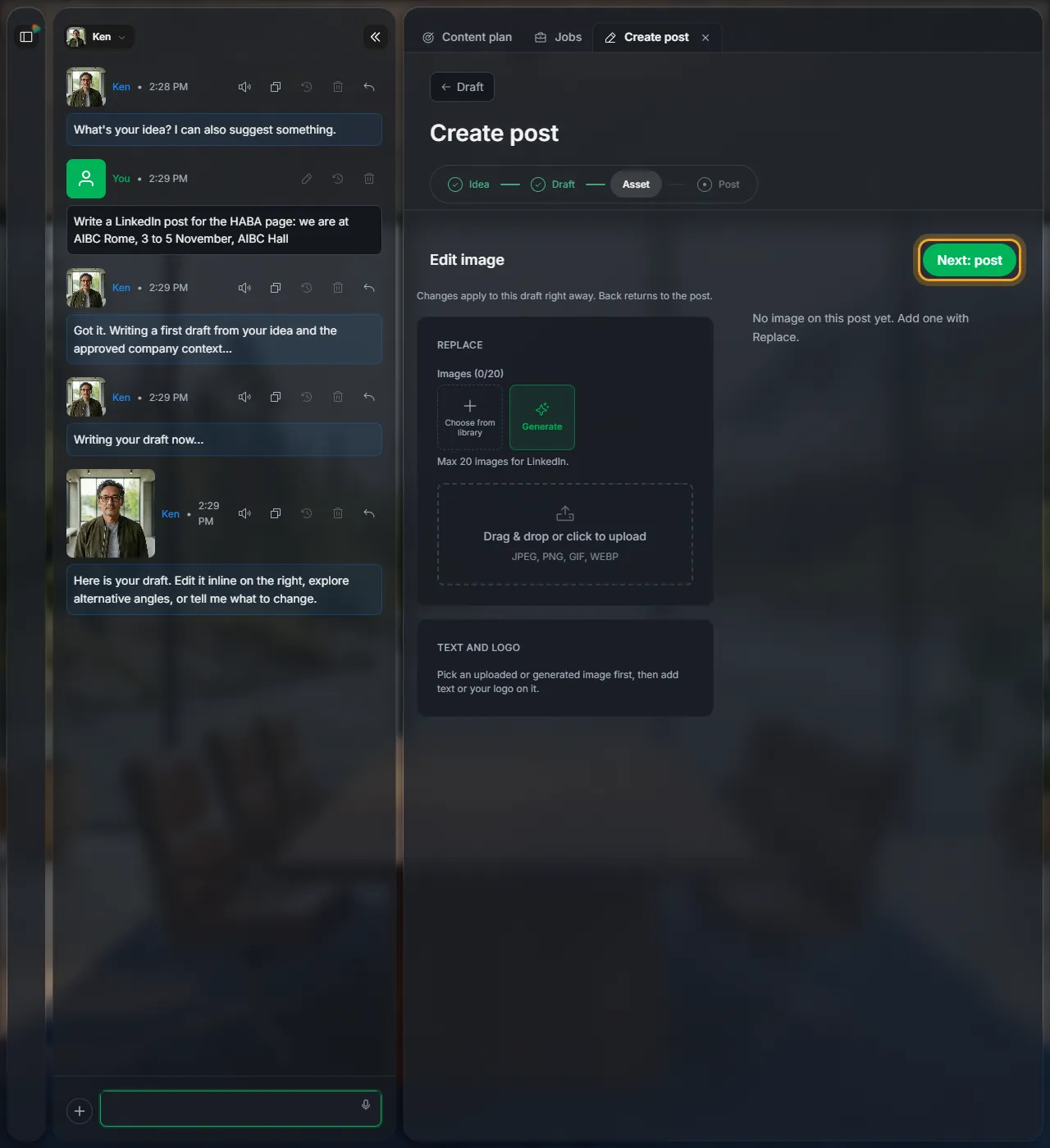
Click Next: image. Edit image opens: Choose from library, let Haba Generate one, or drag your own picture in. Then add text or your logo on it if you like. A carousel says Next: pictures, for several slides. A post without a picture is fine too.
Happy with it? Click Next: post.
5Add it to your plan
Click Add to plan. Haba gives the post a day, adds it to your Content plan and opens the plan. There the post waits for your OK with the other posts of the week: see Review and approve a post.
Know the day and time already? Click Schedule and pick them: the post goes into the plan approved and scheduled.
Not ready yet? Save to Drafts keeps it in Content › Drafts.
Next
Did this page help?
Screens from 16 November 2026